HDD to SSD Upgrade
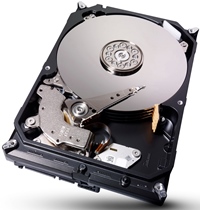 HDD to SSD upgrade is the most noticeable thing that can be done to an old computer in a single visit: a MacBook or a laptop that used to take minutes to boot starts up in seconds. A hard drive with spinning platters is the only mechanical part that keeps working the whole time the computer is on, and it is exactly what slows the whole system down.
HDD simply means hard drive, so an HDD to SSD upgrade and a decision to replace HDD with SSD are the same thing. I do this work on MacBooks, on iMac all-in-ones, on Mac mini and on ordinary laptops of any brand. Diagnostics are free and come with no obligation — first I look at what is wrong with the computer, then I offer the options.
Who needs an HDD to SSD upgrade: MacBook, iMac, Mac mini and laptops
A hard drive sits in computers of certain model years. Here is where you find it:
- MacBook and MacBook Pro up to 2012 — a MacBook SSD upgrade on these models is done without any modifications
- iMac 2009–2019 — a hard drive or a Fusion Drive pair, and an iMac hard drive replacement is possible on all of these models
- Mac mini up to 2014 — a hard drive or a Fusion Drive, where a Fusion Drive to SSD upgrade follows the same order as a regular one
- laptops of any brand that still have an HDD inside — once I replace HDD with SSD they land in the same league as new models
An HDD to SSD upgrade is possible in any of them: the model year and the brand make no difference.
Symptoms that show the hard drive should be replaced with an SSD
People describe the same things to me over and over:
- the computer runs slowly even on simple tasks
- the laptop takes forever to boot — minutes pass before the desktop appears
- the spinning colour wheel never stops
- folders and icons stop responding to clicks, the system seems frozen
- the computer behaves strangely: programs open with a delay or do not open at all
- clicking, cracking or grinding noises come from the case
- some files will not open, files and folders disappear
- the hard drive shows up in the system one moment and is gone the next, the computer cannot find the system at startup
This does not happen because the data gets demagnetised. A hard drive wears out mechanically: platters and heads degrade, the lubricant thickens, the number of bad sectors grows year after year — and files are lost because the drive can no longer read its own sectors. A drive that has been running for five years or more is not a question of whether it will fail, but when. When I replace HDD with SSD, every symptom on that list disappears at once, because the cause itself — the mechanics — is gone.
One more thing: there may be no symptoms at all. If there is an HDD inside, an HDD to SSD upgrade is needed anyway — it is not a repair of a fault, it is the only way to give the computer normal speed back.
How an SSD differs from an HDD hard drive
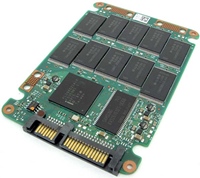 A hard drive works like a record player: magnetic platters spin, a head on an arm travels across them looking for the right spot. Every single access to a file is mechanics, and that is where the time goes. No matter how fast the processor is, it waits for the drive.
An SSD is memory chips with no moving parts at all. It finds data instantly, anywhere on the drive, and delivers it many times faster. Noise and vibration disappear as a bonus, the computer runs cooler and a laptop lasts longer on battery. A drop or a knock is not fatal for an SSD either — there is nothing inside to break.
Where an SSD loses to a hard drive
There are downsides, and I would rather say them plainly:
- for the same capacity an SSD costs more than a hard drive
- an unpowered SSD is not meant to sit in a drawer for years: the charge in the memory cells leaks away slowly, and an HDD is the better choice for a cold archive
- if an SSD does fail, pulling the data off it is considerably harder than off a hard drive
None of these points affects day-to-day work. They only matter for an archive that sits unpowered for years.
MacBook SSD upgrade on models up to 2012
In these MacBooks the drive sits on a standard connector, so a MacBook SSD upgrade on this generation is the quickest part of the job. Afterwards the old laptop stops being irritating: the system boots in seconds, programs open right away. An HDD to SSD upgrade gives the most obvious result here out of everything that can be done to these models.
MacBooks with a Retina display have no hard drive inside, they use flash storage. On 2012–2015 models it is removable, and if the storage itself has failed, I replace it. Other faults of these laptops are covered in my article on MacBook repair.
HDD to SSD upgrade in iMac 2009–2019 models
In an all-in-one I change the drive the same way as in any other computer: I copy the old HDD onto the new SSD sector by sector, one to one, together with the system, the programs and the files. If there is nothing left to copy and the old drive is dead, I install a new SSD and a fresh system.
A Fusion Drive to SSD upgrade follows the same order. A Fusion Drive is not one drive but a pair: a small fast flash module and an ordinary hard drive, which the system shows as a single volume. Sector-by-sector copying keeps the pair intact. A 128 GB flash module in good condition I sometimes leave inside, a weak one or a 32 GB one goes out. Apple used this pair in iMac models from 2012 to 2019 and in Mac mini 2012 and 2014.
An iMac hard drive replacement shows straight away: the all-in-one stops thinking about every folder you open. An iMac hard drive replacement on earlier models, where the screen is held by magnets, is possible as well. The rest of the work on all-in-ones is described on the iMac computers repair page.
SSD installation in Mac mini models up to 2014
An HDD to SSD upgrade here is no different from any other computer: the hard drive goes out, an SSD takes its place, and a Fusion Drive to SSD upgrade in these models follows the same order. The hard drive gets replaced in any case — leaving it inside makes no sense. The rest of the work on these computers is on the Mac mini repair page.
SSD instead of a hard drive in laptops of any brand
With ordinary laptops it is all the same: if there is an HDD inside, the decision to replace HDD with SSD gives the biggest speed gain of anything that can be done to such a laptop, and it costs less than any other intervention. Afterwards the laptop performs the way noticeably more expensive models do. An HDD to SSD upgrade suits any laptop with a hard drive inside, and the brand makes no difference. For other faults see the laptop repair laboratory page.
System installation and data transfer options after an HDD to SSD upgrade
Once the new SSD is in place, there are two working paths:
- a clean system on the new SSD — the computer starts from scratch, without the junk collected over the years
- a one-to-one transfer of the old system together with the programs and the files, so that nothing has to be looked for or set up again
On older Macs the latest macOS version is limited by the model itself — I install the highest one Apple released for it and do not use homemade workarounds. If the old hard drive already reads poorly, I pull the data off it on the software level, as far as that is possible at all.
The drives are usually mine, but by arrangement I can fit the one a client brings in. An HDD to SSD upgrade is also a good moment to do a MacBook cleaning and maintenance job, since the computer is open anyway.
Can a soldered SSD in a modern Mac be replaced
In recent Macs the storage is not a separate part at all: the memory chips are soldered straight onto the board. Technically they can be replaced and I know how it is done — the old chips come off, new ones of the right capacity and configuration go on, and the computer is then restored through DFU mode. The data is not preserved in any case: new chips arrive empty and the system is installed from scratch.
I do not take this work on, for two reasons. The first is the very high risk of killing the board: the chips sit on compound, they have to come off with strong heat, and that kind of repair always runs on the edge. The second is that it does not work on every model or with every memory configuration. On top of that, if the built-in storage is not enough, an external SSD over USB-C solves the problem for less money and without putting the computer at risk.
Free diagnostics before an HDD to SSD upgrade
The workshop has been running since 2006. Diagnostics are free and come with no obligation: I look at the computer and tell you what is wrong with it, what is worth replacing and what is not, then show the options — which drive to fit and what to do with the system and the data.
I do not travel to clients — computers are brought to the workshop, and the address and opening hours are on the contact us page. You can also write to me on WhatsApp.